Learning center
First week · step 3 of 14 · 8 min
Your first week: hours, policy, appointments
Log this week's appointments and set the rules of your booking page.
- 1Set your working hours
The days and hours clients can book. Different hours per day are fine.
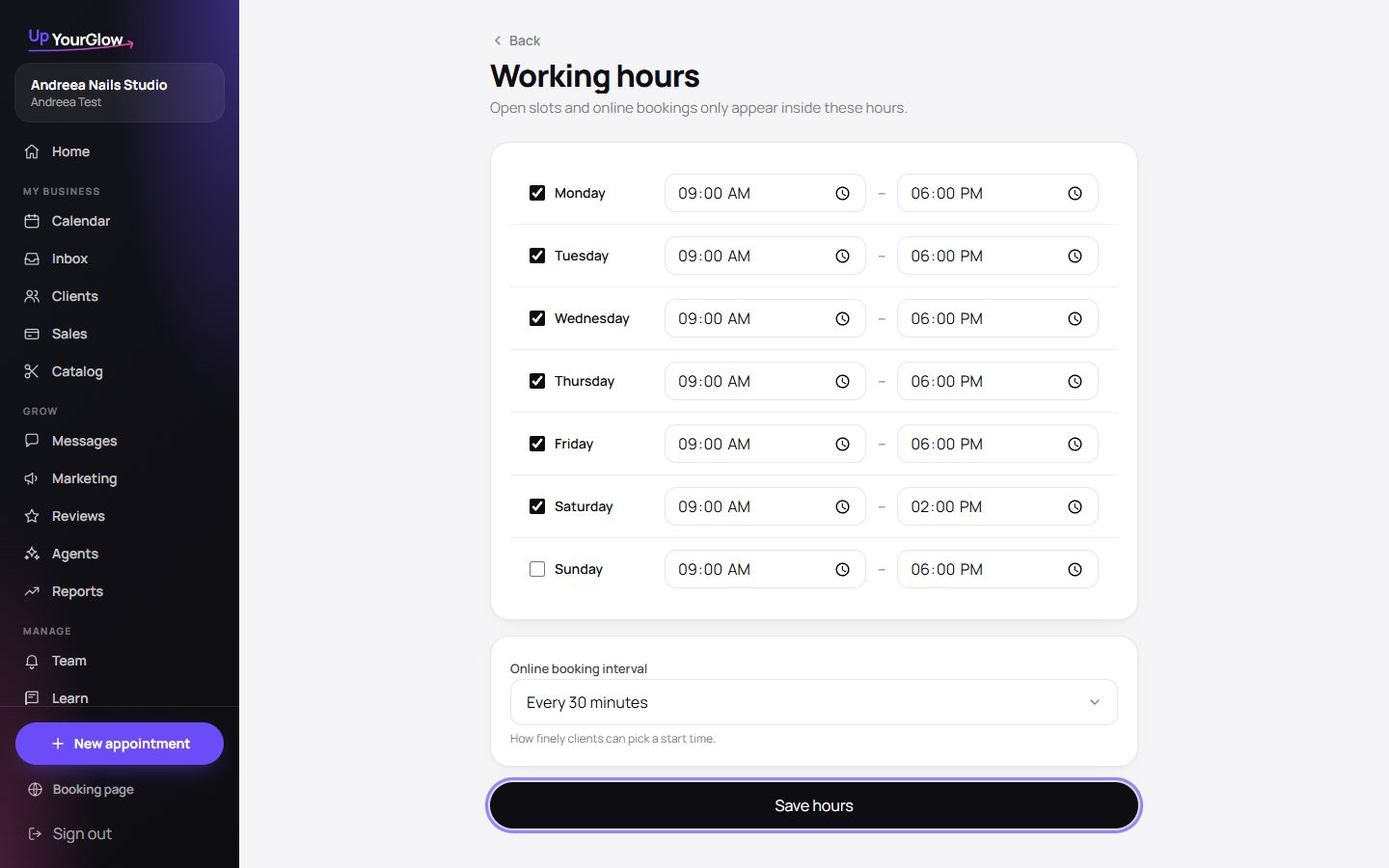 Working hours · where to click is highlighted in violet
 - 2Slot length and buffer
How fine the booking grid is (15 or 30 minutes) and how many minutes you want between two clients for cleaning and notes.
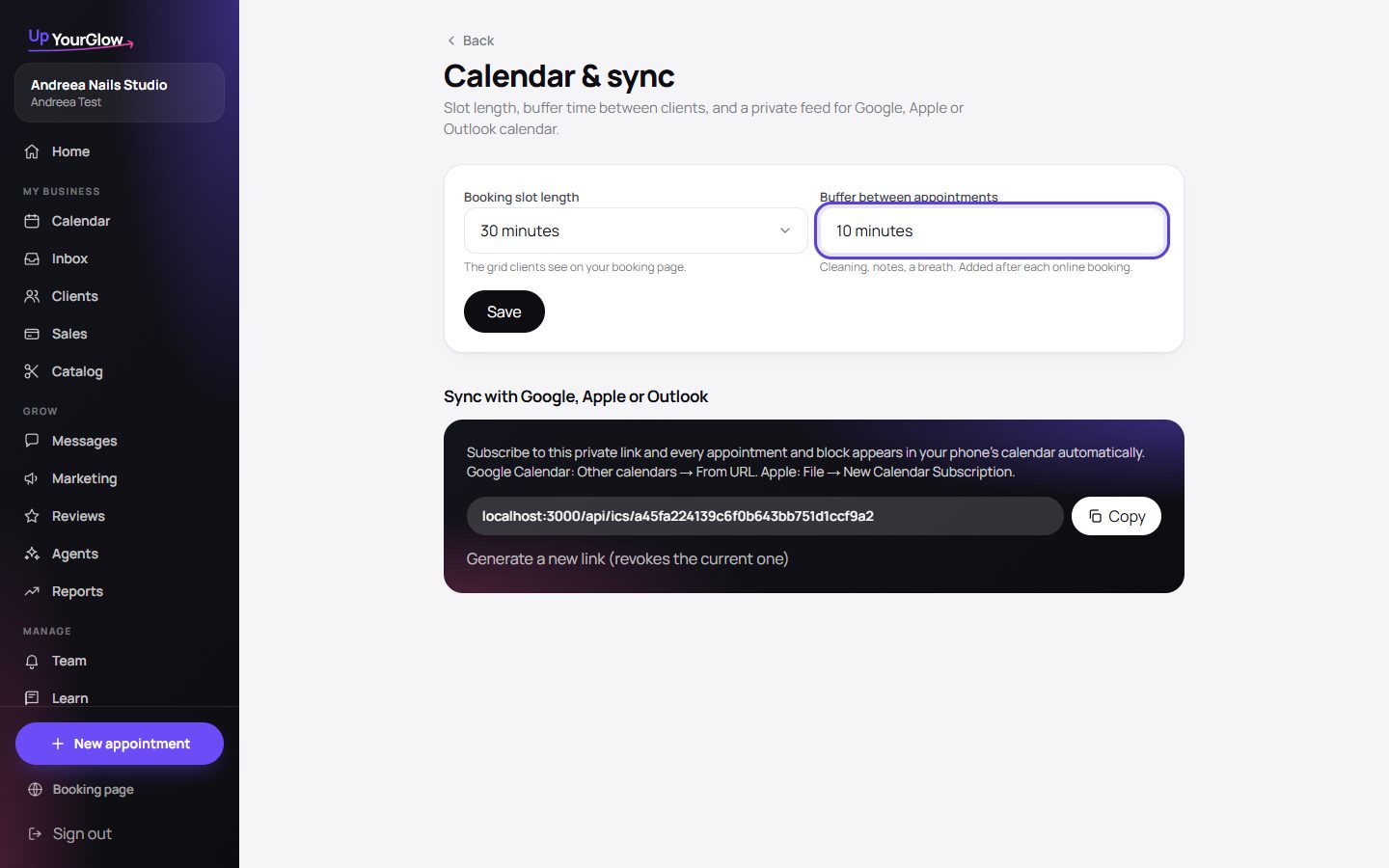 Calendar settings · where to click is highlighted in violet
 - 3Cancellation policy and notice
A short policy shown on every booking screen, and the minimum notice (for example 24 hours) before a client can book.
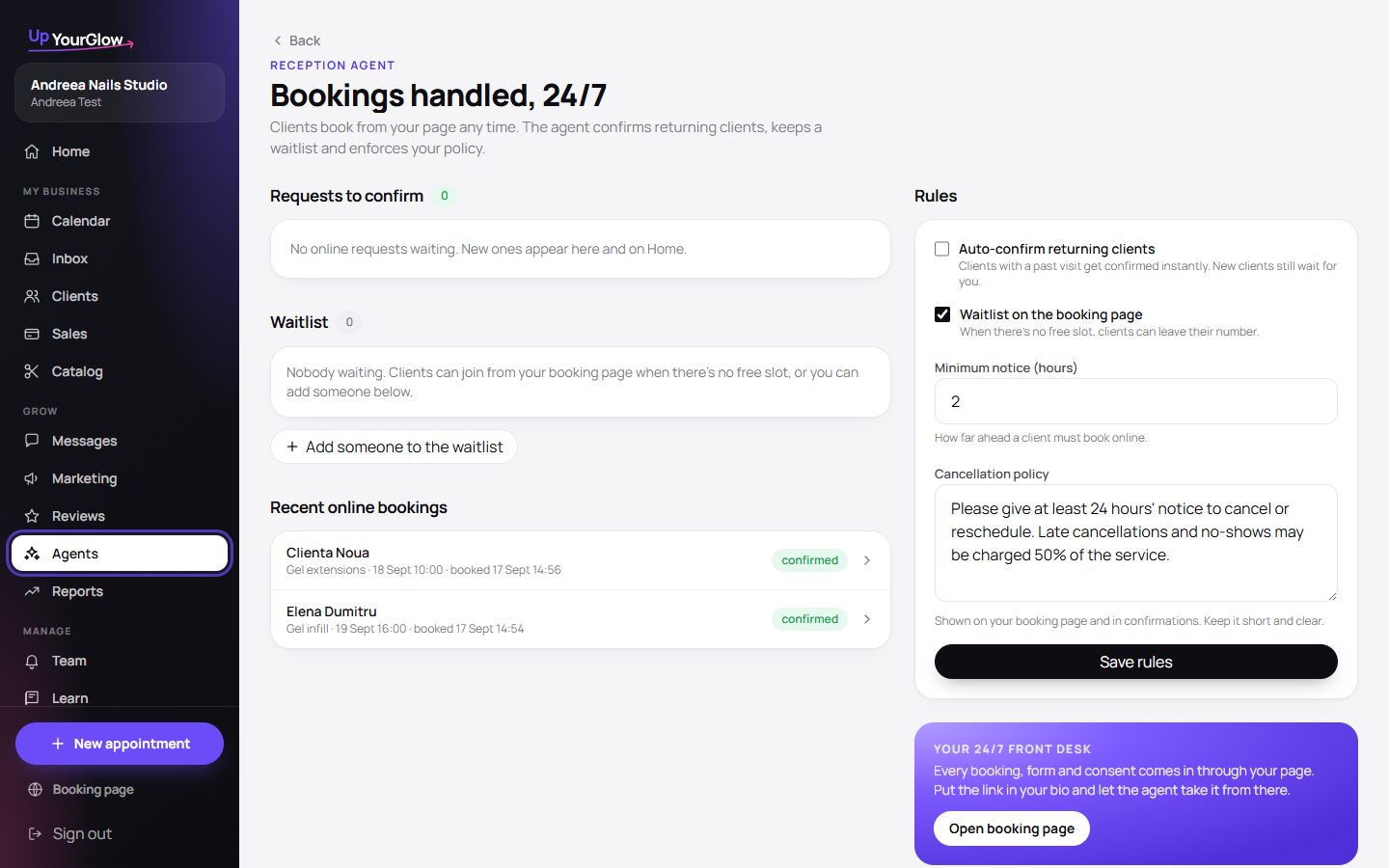 Reception settings · where to click is highlighted in violet
 - 4Log this week's appointments
Client, service, day and time. From the first completed visit the app learns each client's own rhythm.
 New appointment · where to click is highlighted in violet
 - 5Block the time you don't work
Lunch, training, a short day. Repeating blocks cover a whole season in one go.
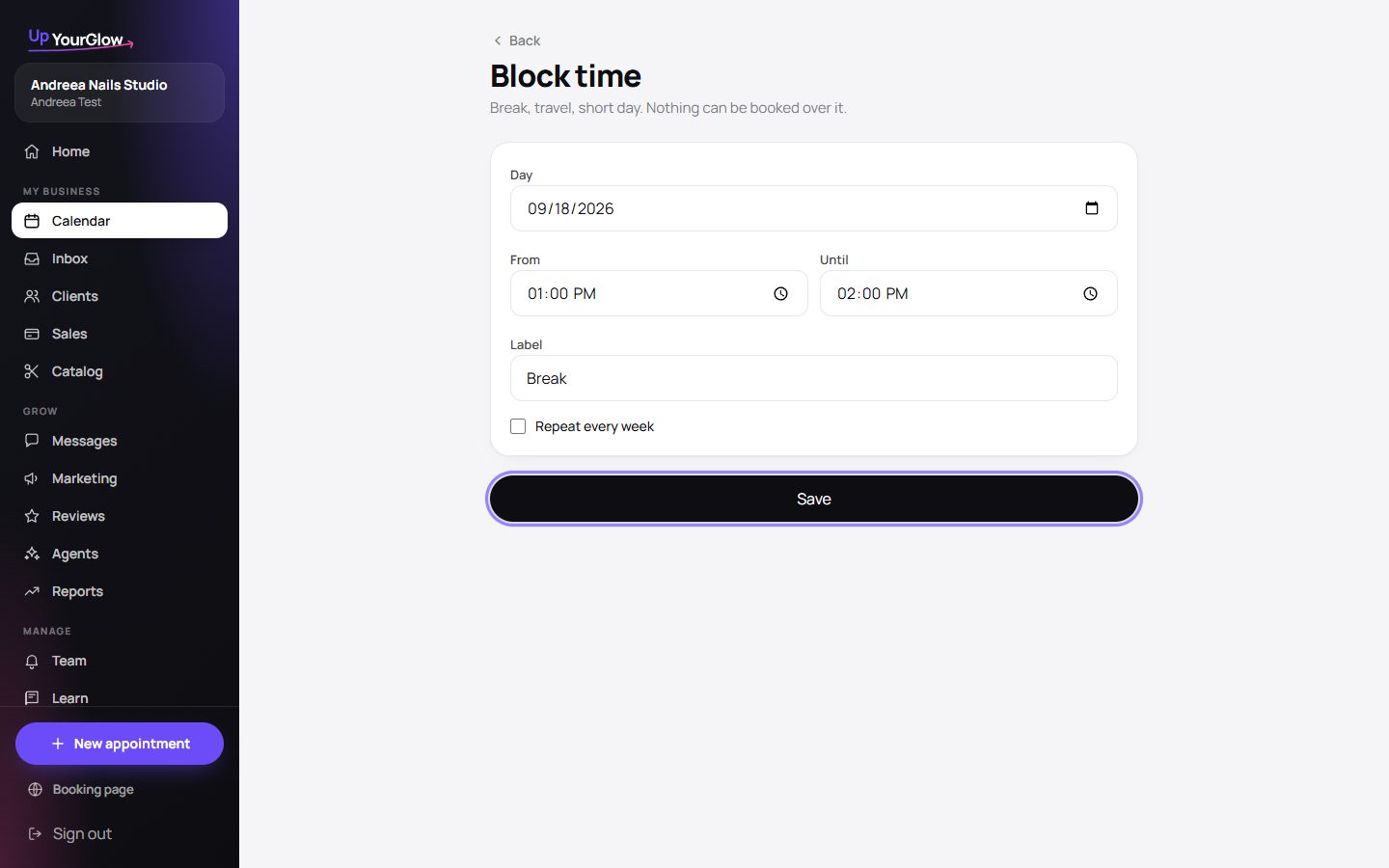 Block time · where to click is highlighted in violet
Stop running your business from your DMs.
Organised in 2 minutes. More clients in your first week. Free for up to 30 clients.